Meet TransferCove v0.2.3

Your files.
Your network.

From your phone to your computer.
From a browser to your own folder.
A simple file transfer, close to home.

Free & open source No cloud account

THE DESKTOP RECEIVER01 / 04
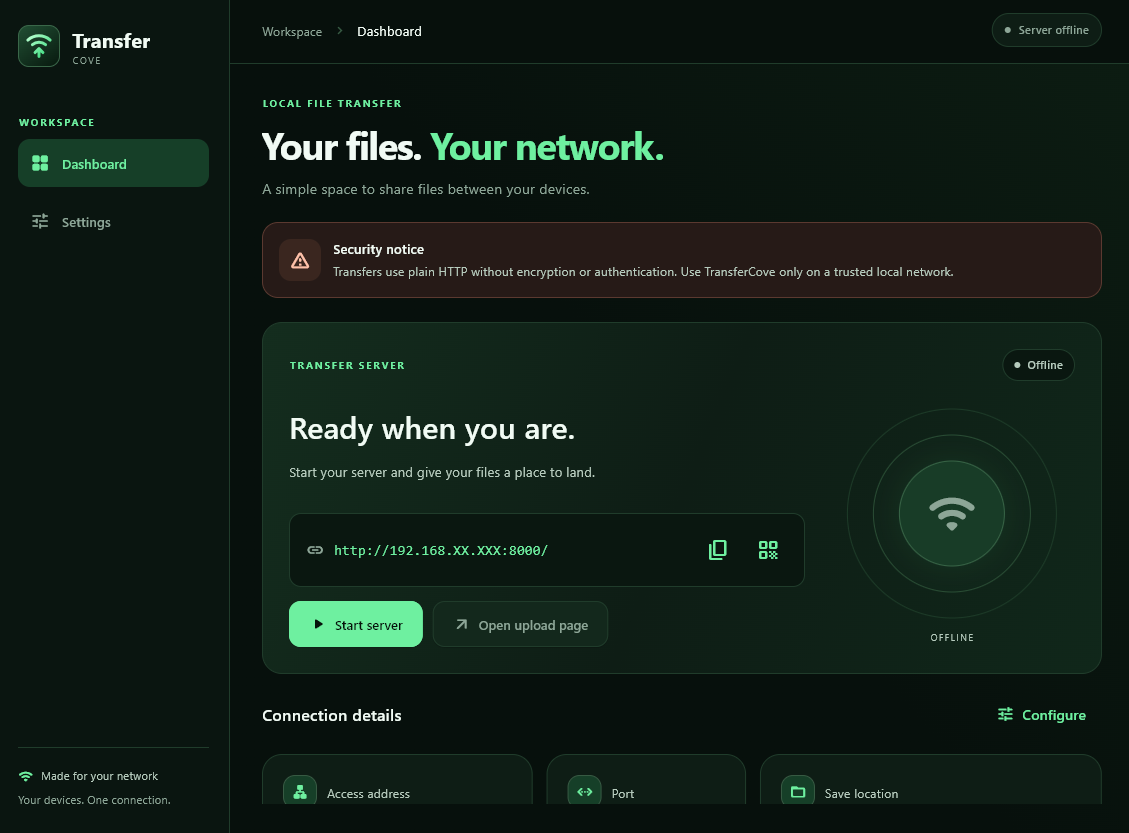
TransferCove dashboard with server controls, address, port, and save location
One place to manage incoming files.Click to explore

One desktop appYour computer receives the files.

Send from a browserNo app needed on the sending device.

No cloud storageA direct transfer on your local network.

A shorter route for your files

Same network.
Three simple steps.

Keep both devices on a local network you trust. The computer receives; the other device only needs a browser.

  1. Set up the receiver

    Open TransferCove on your computer. In Settings → Connection, select Use current LAN address, save, and start the server.

    On your computer
  2. Make the connection

    Scan the dashboard’s QR code or open its local address on your phone, tablet, or another computer.

    On the sending device
  3. Send. Watch. Done.

    Select or drop your files, then start the upload. Follow the progress as they arrive in your chosen folder.

    Straight to your folder

Inside TransferCove

Less guesswork.
More getting files there.

Real screens from the app. See the whole interface below, or select an image for a closer look.

02 / 04 Your setup

A place for everything
that comes in.

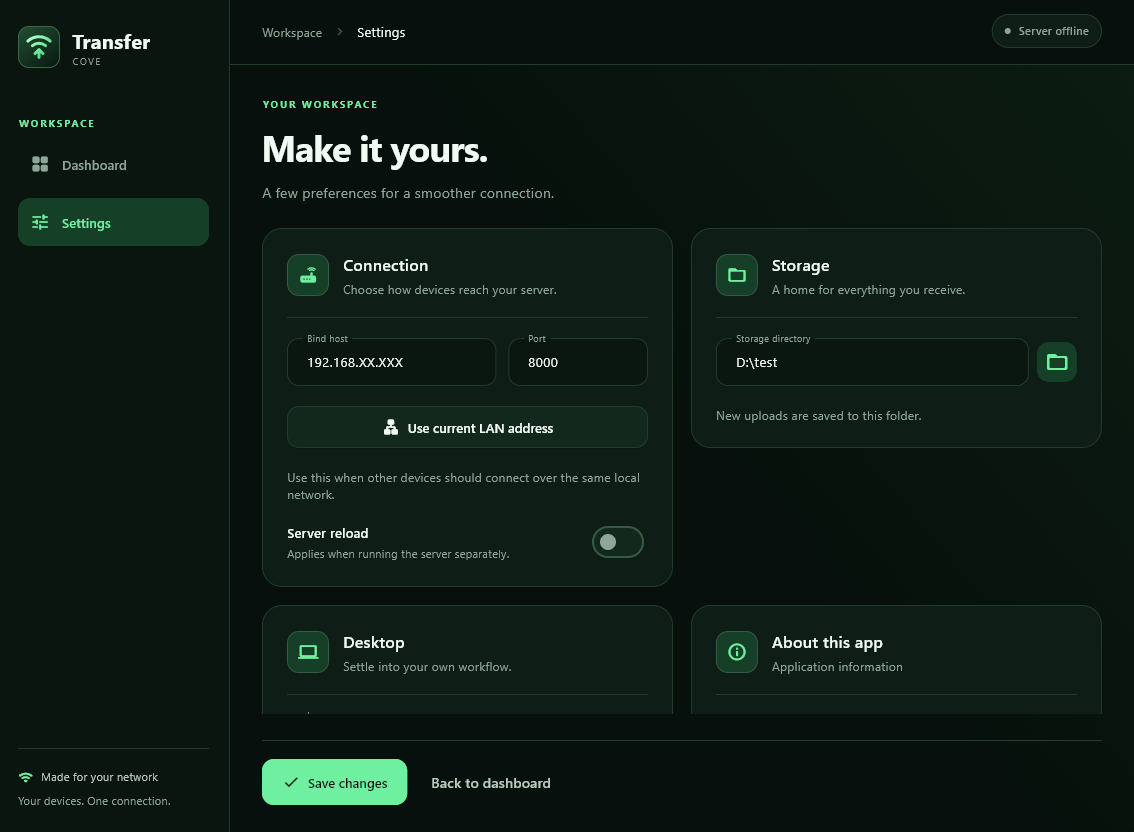
Choose the save folder, configure the connection, and set how the desktop app starts. Your preferences stay ready for the next transfer.

  • Automatic local address detection
  • Your choice of destination folder
  • Desktop startup preferences
TransferCove settings with connection, storage, and desktop preferences
DESKTOP / SETTINGS

03 / 04 The hand-off

A browser.
A few files.
You’re all set.

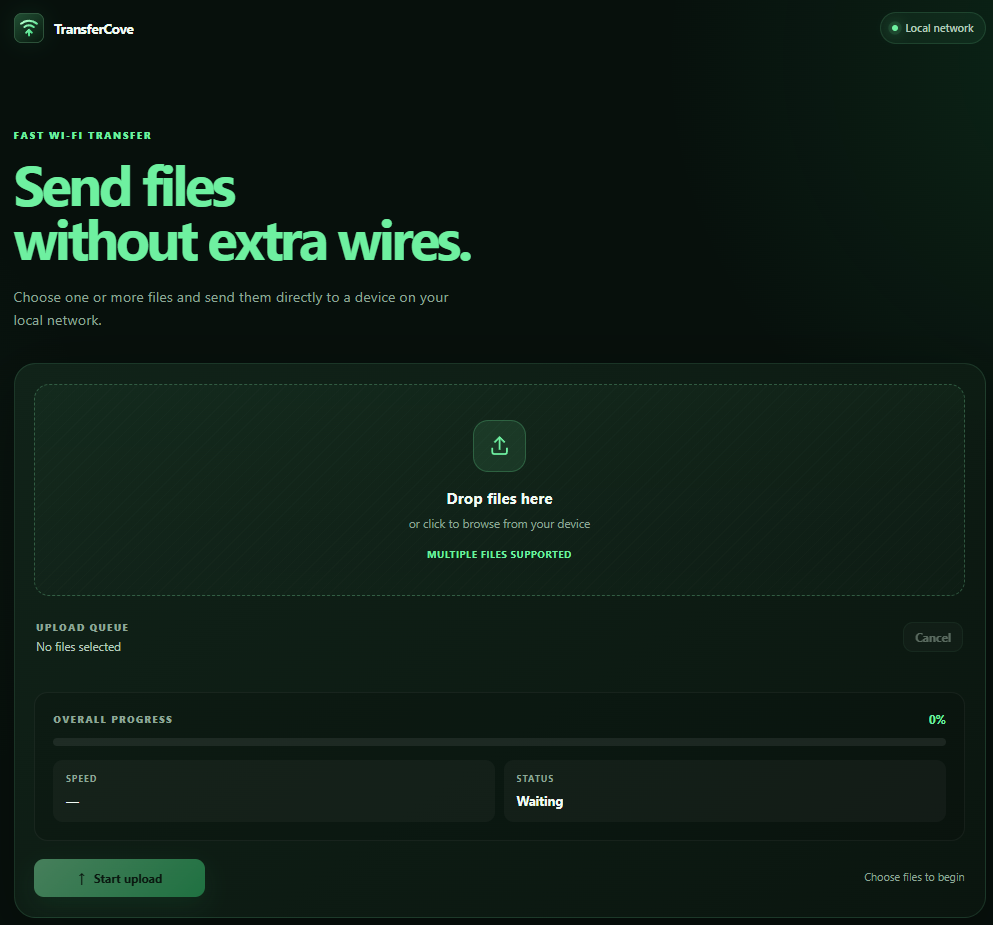
Open the receiver’s local page and add your files. The upload queue shows what is sending, what is finished, and what comes next.

  • Drag and drop multiple files
  • Per-file progress and transfer speed
  • Stop an upload or cancel the queue
Browser upload page showing a drop area, file queue, and transfer progress
BROWSER / UPLOAD QUEUE

04 / 04 Small screen, same idea

Already on
your phone.

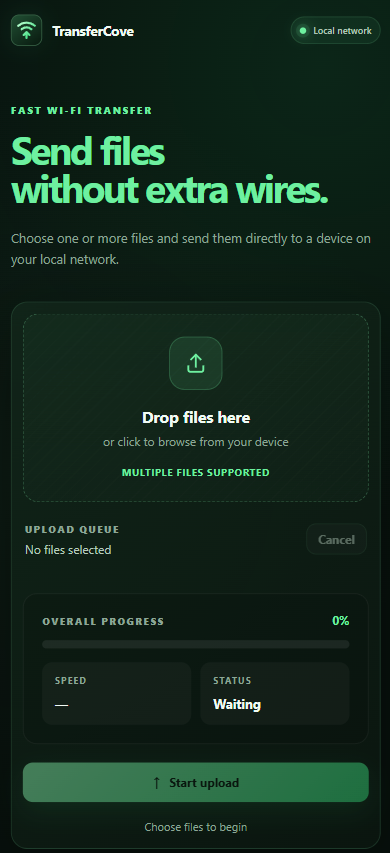
Your mobile browser is the sender. Scan the QR code, choose your files, and send them to the computer without installing a companion app.

Start with the desktop app
Phone browserYour computerSame trusted network · plain HTTP
Full mobile upload page with file selection and transfer queue
MOBILE / NO COMPANION APP

Screenshots use a sample queue in a demo environment. This website showcases the app; it does not receive or transfer files.

Before your first transfer

A few useful
things to know.

Read the documentation
Are transfers encrypted?

No. TransferCove has no encryption or authentication. Files travel over plain HTTP. Use it only inside a trusted, verified local network.

Do not expose the receiver to the public internet, configure port forwarding for it, or use it on public or untrusted Wi-Fi. Other devices that can reach the receiver do not need to sign in.

Does the sending device need an app?

No. Run TransferCove on the receiving computer, then open its local address in a modern browser on the sending device. A phone, tablet, or another computer can send files.

Where do my files go?

Files are saved in the receiving computer’s storage folder, which you choose in Settings → Storage. TransferCove does not use cloud storage for the transfer.

Why can’t my phone connect?

Connect both devices to the same trusted local network. In Settings → Connection, choose Use current LAN address, save, and start the server. Use the dashboard’s shareable address or QR code.

127.0.0.1 only works on the receiver itself; 0.0.0.0 is not an address to open in a browser. Your private-network firewall must allow the selected port. Some guest networks also block connections between devices.

How do I install or run TransferCove?

Visit GitHub Releases for the published builds and installation notes. To run from source, you need Python 3.14+ and Poetry. Follow the repository’s quick-start guide.

Is it free to use?

Yes. TransferCove is open source under the MIT license. There is no subscription or cloud account to create. You can inspect the code, report an issue, or contribute on GitHub.

A little closer to your files

Make the
local connection.

Get TransferCove from GitHub. Set up your receiver,
open a browser, and bring your files home.

VERSION 0.2.3MIT LICENSEOPEN SOURCE
View GitHub releases Explore the source code

Unencrypted transfers.
For trusted local networks only.

Full-size image ↗